The screen between sales is yours
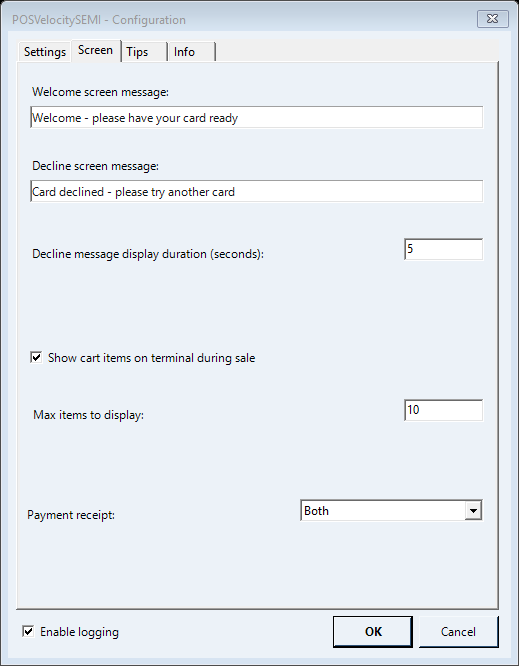
Write the line that sits on the terminal while the lane is quiet — a greeting, a promotion, the store's own name. It goes back up on its own after every sale, every hold, and every decline.

A plug-in that installs into the L-POS you already run and turns the payment terminal into a second display for the sale. The cashier scans; the customer watches their own basket build in front of them, line by line, with the tax and the total moving as it goes. Press tender and the same screen takes the card — no second system, no re-keying, nothing new for anyone behind the counter to learn.
This is the sequence the plug-in actually performs — a line pushed on every scan, a void that clears it from both screens, the display frozen the instant subtotal is pressed, and the approval walking back into the ticket. Sample basket, for demonstration.
An illustration of one sale. As the cashier scans, each line — description and price — is sent to the customer-facing terminal alongside a running tax and total; a voided line is removed from both screens. At subtotal the terminal display freezes, the terminal asks for a tip using the store’s presets, the card is tapped, and the approval returns to the point-of-sale ticket before the terminal shows a thank-you and returns to its idle screen.
Most of the day it shows nothing anyone chose. Here every state it can be in — waiting, ringing, refused, thanking — is a setting, and it returns to your idle screen by itself afterwards, without anybody remembering to put it back.
Write the line that sits on the terminal while the lane is quiet — a greeting, a promotion, the store's own name. It goes back up on its own after every sale, every hold, and every decline.
A declined card is an awkward twenty seconds. Choose what the customer reads during it, and how long it stays up, instead of leaving them with a code.
After an approval the terminal says thank you, holds it long enough to be read, and returns to your idle screen without anyone touching it.
A function on the till clears whatever the terminal is showing and restores the idle screen — for the times a customer walks away mid-sale.
Show the basket as it is rung up, or don't. If you do, you choose how many lines stay on screen before the older ones collapse into a single running line.
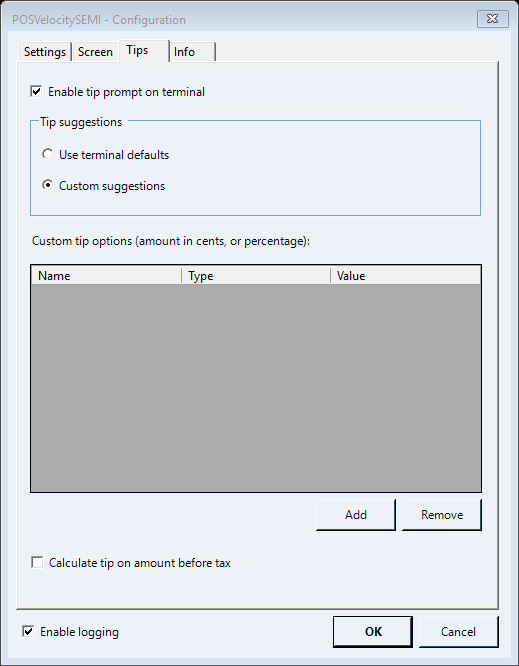
The screen wording is shared across the store; the terminal, the tip prompt, and its presets are set per station — so the café counter can ask for a tip and the service desk never does.
A tip a staff member enters on someone else’s behalf is a conversation nobody enjoys and a number nobody can defend later. Move the question to the device in the customer’s hands, put your own options on it, and the awkward part disappears along with the argument.
See it on your own presetsThe integration lives behind one tender button. What it changes is what happens after that button — and what comes back into the ticket when the card is done.
The cashier presses the payment key they already press. The plug-in takes the amount and the tax straight from the L-POS totals, starts the sale on the terminal, and hands the result back to the ticket — no second screen, no re-keying, no new muscle memory.
A partial approval doesn't strand the sale. The remaining balance goes back on the customer's screen and the next card picks up from there, with every approval recorded against the same ticket.
Every approval on a ticket is remembered by id. When that ticket is reversed later, exactly those payments are voided — not a guess based on amount and time.
Refunds run from the same button. Training mode approves on the till alone, so a new cashier can be walked through a full sale without a terminal, a card, or a cent.
Brand, masked card number, how it was read, the auth number, the approval line and the cardholder acknowledgement are composed into your L-POS receipt at the width it already prints. Merchant copy, customer copy, both, or neither.
The brand that came back from the terminal is mapped to the matching L-POS tender code, so your end-of-day splits Visa from Mastercard from debit instead of piling everything under one line.
Anyone can demo a sale that works. What matters is the one where the network stalls, the customer walks off, or the cashier reaches for cancel a half-second after the card was tapped. Those cases were designed first.
A cashier cancels; a half-second earlier the customer tapped. The plug-in does not assume — it reads what actually happened and, if the card was charged, reports the approval to L-POS rather than letting a real charge vanish off the ticket.
While the terminal has the customer, the till shows the amount, a live countdown against your configured timeout, and a cancel button. Nothing is frozen and nobody is guessing whether it is still working.
If the sale runs past its timeout, the cancel goes out, the terminal is reset, and your idle screen goes back up — so the next customer meets a ready lane, not somebody else's abandoned payment.
A heartbeat checks the terminal on a set interval and warns the cashier on the till after a few consecutive misses. It steps aside during a sale and picks back up after. Better to hear it at 9:15 than from the front of a line at noon.
Four things this integration does not do. Better here than in week two.
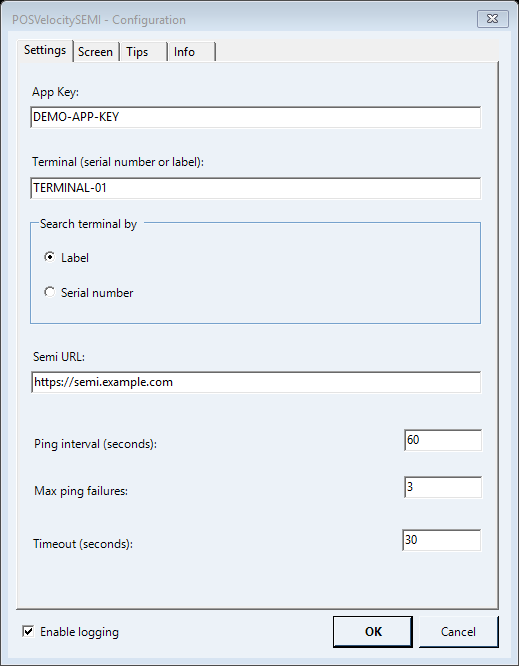
No lane rebuild, no database migration, no weekend. The screenshots below are of the shipped configuration dialog — every switch described on this page is a box you can see in them.
It locates the L-POS program folder on its own and refuses to install anywhere else, so it cannot be dropped in the wrong directory by mistake. Removing it unregisters cleanly.
In the back office, the payment tender is set to use a plug-in, named POSVelocitySEMI. That single setting is what puts the integration on the lane.
An app key, which terminal this till talks to — by label or by serial — and the service address. Timeout, heartbeat interval and logging are there if you want them, and sensible if you don't.
Scan two items, watch them land on the terminal, tender, tap, and check the card block on the receipt. If those four things happen, the lane is done.
Idle and decline wording, how long a decline stays up, the live-cart switch and its line budget, and which receipt copies print.
That is where a payment integration is actually tested — at the front of a queue, on a Friday, with a card that does not want to read. Book a walkthrough and we will set one lane up with you, or take the installer and start from the till you have open.